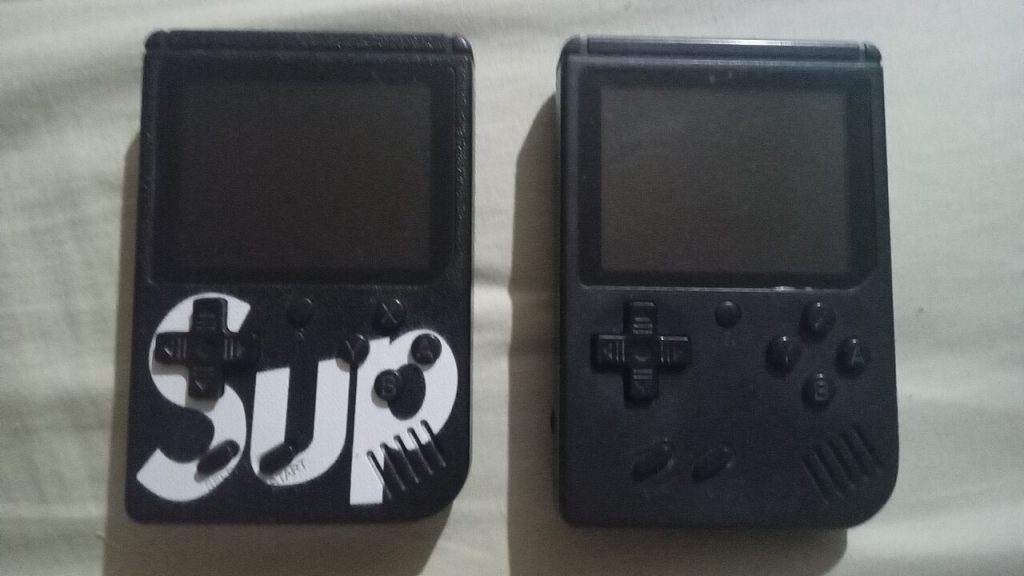
Somewhere in a drawer there is probably a gray plastic Game Boy with a cracked battery cover, and a memory of a cave you never quite finished mapping. The good news is that a modern iPhone, helped by Game Boy emulators, can run those old handheld games well. The slightly messier news is that the rules around doing it are confusing, so here is a plain walkthrough.
What Game Boy emulators are, and where the rules stand
Game Boy emulators are programs that imitate the hardware of an old console so that software written for it can run on something else. They are not games. Think of one as a translator that makes your phone behave like a handheld from twenty-odd years ago.

For a long time Apple did not allow emulators in its App Store, so enthusiasts relied on workarounds. Policy has shifted since, and it may shift again, so check what is currently offered in your region rather than trusting an old forum post.
The legal part is simpler than the internet makes it sound. Game Boy emulators themselves are generally legal to build and use. The game files are the problem. Copying a game you do not own, or grabbing one from a random website, usually infringes copyright, even if the title is decades old and long out of print.
The safest route is to play games you have a right to play. Some people dump the games from cartridges they own using a dedicated reader. Others stick to homebrew titles, made by hobbyists and shared freely with the creators’ permission. I will not point you to sites that host copyrighted games, and you should be wary of any that do.
Getting set up
The details vary by app, but the general process is short.
- Install one of the Game Boy emulators from a source you trust, after reading reviews and checking the developer name.
- Put your game files on the phone or in cloud storage, in a format the emulator accepts.
- Open the app, add the games to its library and tap one to launch.
- Adjust screen size, filters and sound in the settings.
Do not enter personal information into any app that has no reason to ask for it, and be careful with anything that asks you to disable security features on your phone. A legitimate Game Boy emulator should never need that.
Making it feel like a real handheld
Touch controls work in a pinch, but small on-screen buttons get tiring after a few minutes. A controller makes a huge difference. Many Bluetooth controllers pair directly with an iPhone and are recognized by emulators, and clip-on designs that hold the phone like a handheld feel closest to the original. Inside the app you can usually remap buttons so the A and B positions match what your thumbs remember.
Screen filters help too. Old games were designed for tiny, low-resolution screens, and a sharp modern display can make them look blocky and harsh. Smoothing or grid effects bring back some of the original softness, though it comes down to taste. Try a few on a game you know well, such as a platformer with plenty of flat color, and see which one makes your memory and your eyes agree.
Pay attention to screen proportions as well. The original handhelds had a small, nearly square display, while a phone is tall and narrow. Most Game Boy emulators let you scale the picture in whole-number steps, which keeps pixels crisp. Stretching to fill every edge looks worse than a modest border.
Save files, save states and a habit worth forming
Old cartridges stored progress in a small battery-backed memory chip. Game Boy emulators copy that behavior with ordinary save files, and add something extra called save states, which freeze the game at any moment.
Save states are wonderful for a brutal boss fight, but do not rely on them as your only save. They can break when one of the Game Boy emulators updates, and they do not carry across different apps. Use the game’s own in-game save regularly, and copy the save folder to cloud storage once in a while.
Consider a long role-playing game. A hundred hours in, a corrupted save is a miserable thing, and no amount of nostalgia repairs it. A two-minute backup habit avoids the whole story.
Troubleshooting and whether it is worth it
Sound crackling or slowdown usually means a heavy filter; turn off extra effects. A game that will not load is often a file-format issue, such as an unsupported compressed archive. Battery drain comes mostly from a bright screen rather than the emulation itself, so lower the brightness. And if notifications keep interrupting your game, switch on a Focus mode before you start.
Is it worth the effort? If you want to replay a childhood favorite on your commute, yes. The convenience is hard to beat, and the games hold up better than you might expect. If you are chasing the authentic experience, nothing beats the original hardware with a fresh battery.
Whichever way you go, keeping a game collection legal is mostly common sense: play what you own, support developers who still sell their classics, and treat anything labeled “free download” with suspicion. That way, the only thing you have to worry about is whether you remembered to heal before the gym leader.
Related reading: Paid Podcast Memberships: What Listeners and Creators Should Know and Can AI Build a Playable Game From a Single Text Prompt?.
Photos: King Dig Dug (CC0, Wikimedia Commons); Evan-Amos (Public domain, Wikimedia Commons).