Your router is the front door of your digital life. Every website, video call and smart gadget in your house passes through it. So when a big company that makes or owns Wi-Fi hardware comes up in conversation, a fair question follows: what can that device actually see, and who has access? This piece is about Wi-Fi router privacy in general, because the answer depends far more on how a device is built and set up than on the logo on the box.
Wi-Fi router privacy starts with what a router can see
Let’s separate two things that often get blurred together.
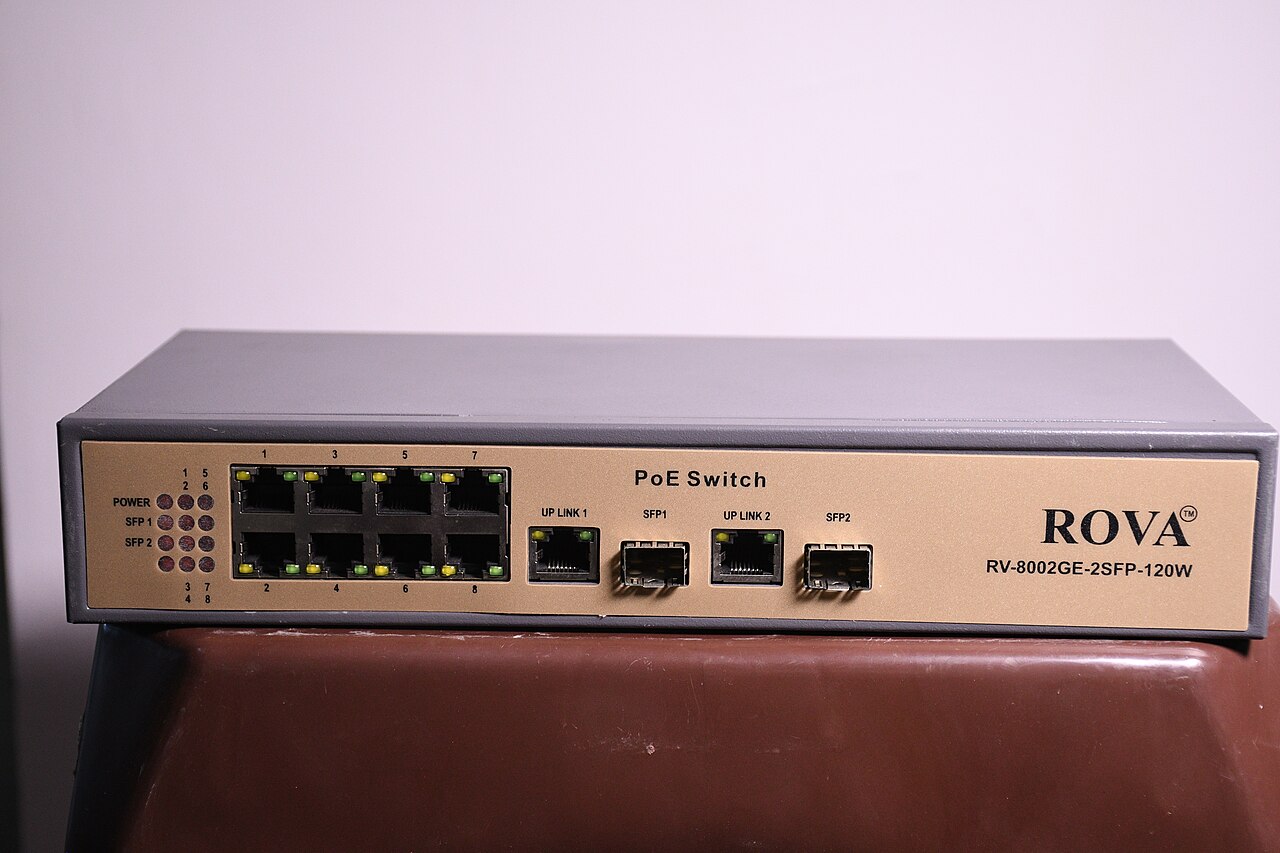
First, the router knows which devices are connected, when they connect and how much data they move. That’s basic bookkeeping and it’s needed to do the job. It also knows the addresses of the services your devices talk to, because it has to send the traffic to the right place.
Second, it can see the content of your traffic only if that content isn’t protected. Most websites and apps today use encryption between your device and the service. With encryption, a router can see that you connected to a particular site, but not the pages you read, the messages you typed or the passwords you entered. Unencrypted traffic, which is now rare, is a different story.
So Wi-Fi router privacy comes down to metadata versus content. Metadata, such as who connected where and when, is visible. Content is mostly hidden. Metadata still says a lot about habits, which is why it matters.
Where the data goes
Wi-Fi router privacy also depends on features, because many modern routers do more than forward packets. They come with companion apps, cloud accounts and optional features such as parental controls, security scanning and usage reports. Those features often rely on the manufacturer’s servers.
When you turn them on, some information about your network may leave your home. That could include device names, connection times and traffic summaries. Whether that is a concern depends on what the company collects, how long it keeps it, who it shares it with, and how well it protects it. These answers live in the privacy policy, which few of us read, but which you can skim for key phrases like share, retain and third parties.
Internet providers are another piece. If your service provider supplies the router, they typically can manage it remotely. That is useful for fixing faults, and it also means a party other than you has a degree of access. Even without a router, your provider can see the same connection-level metadata about your traffic, because it carries it.
Who owns the company matters, within limits
Sometimes the concern is about a router maker’s home country or its owners. It’s reasonable to consider this, especially for government or sensitive business use, where rules sometimes restrict certain suppliers. For an ordinary household, though, the owner’s flag is only one factor, and it is not the most useful one.
Better questions are practical. Does the company publish security updates regularly? Does it fix vulnerabilities quickly? Does it let you turn off cloud features? Can you use the router without creating an account? A well-supported device from any country is safer than an abandoned one.
Poor Wi-Fi router privacy is more often caused by old firmware and weak passwords than by any corporate plot. Attackers love routers that haven’t been updated in years, because those have known flaws that anyone can look up.
Practical steps to protect yourself
You don’t need special skills to improve your Wi-Fi router privacy. These steps cover most of it:
- Change the default admin password. The login for the router’s settings page is different from the Wi-Fi password, and many people never touch it.
- Use strong Wi-Fi encryption. Choose the newest security mode your devices support, and set a long, unique passphrase.
- Keep firmware current. Turn on automatic updates if the router has them, and check manually if not.
- Turn off what you don’t use. Remote administration, old file sharing features and unused cloud services all widen the door.
- Use a guest network. Put visitors and smart gadgets on a separate network so they can’t reach your laptops and phones.
- Look at the connected devices list. Anything you don’t recognize deserves a closer look.
- Replace aging hardware. If the maker no longer provides updates, it is time for a new device.
Beyond the hardware, your own habits shape Wi-Fi router privacy too. Use sites with encryption, keep your devices updated, and consider a VPN if you are on a network you don’t trust.
Is it better to own the box outright?
Many people rent a router from their provider without realizing there’s an alternative. Buying your own gives you more control over settings and updates, and it lets you choose a device based on its security record. It also means you’re responsible for maintenance, which some people would rather skip.
If you do use a provider’s equipment, check which Wi-Fi router privacy settings you can control. Many allow you to change the Wi-Fi password, disable remote features or put the device in bridge mode so your own router does the real work.
The grown-up view
It’s easy to swing between ignoring the topic and fearing the worst. A calmer view is more useful. Your router can see which devices talk and roughly with whom, but encryption keeps most of the content private. The bigger risks are neglected updates, weak passwords and features you never needed.
Treat Wi-Fi router privacy as routine household maintenance, like checking smoke alarms. Spend an hour on it once, set a reminder to repeat it twice a year, and you’ll be ahead of most networks out there.
For a neutral background reference, the Wikipedia article on Wireless router is a useful place to start.
Related reading: Your Encrypted Messaging App Is Closing. Now What? and Your Phone Number as Proof of Identity: Pros and Limits.