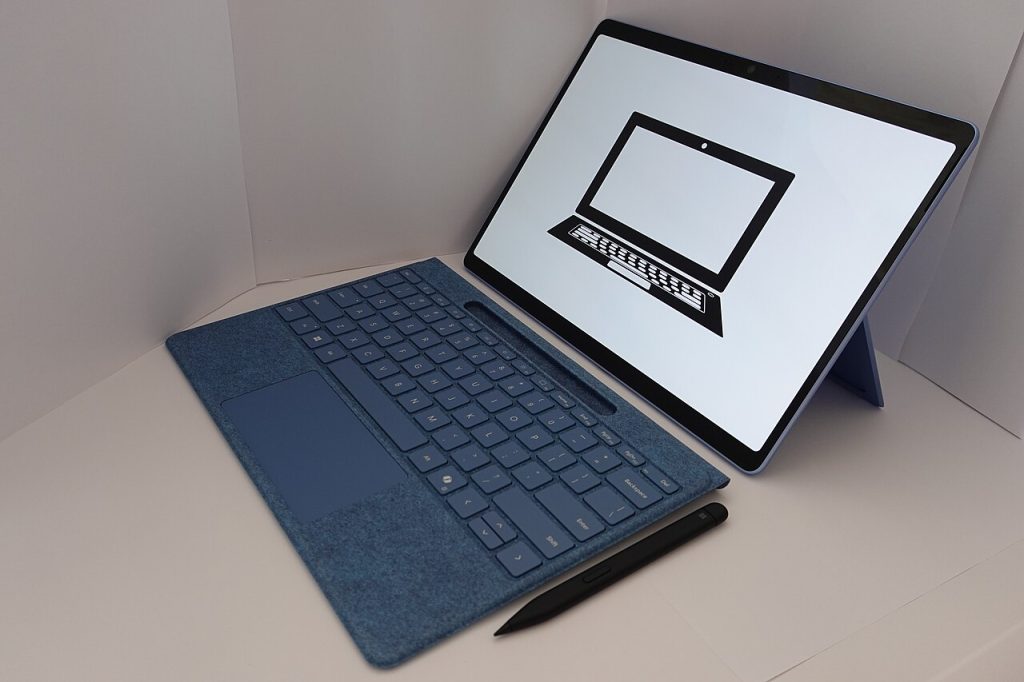
Tablets that also act as a smart speaker and home display are a growing product type. You can ask for the weather, control lights, watch a video, and then carry the device to another room. When these tablets add access to a full app store, they look even more like a one-device answer for the family. Before you buy, though, there are several points worth checking that spec sheets do not highlight.
What these devices are for
A voice-assistant tablet fits a few common uses.
- A kitchen or living-room screen for recipes, timers, and video calls.
- A hub for controlling smart-home gear such as lights, locks, and cameras.
- A shared family tablet for streaming and light browsing.
- A bedside clock and alarm that also plays music.
If your main aim is heavy work, drawing, or demanding games, a conventional tablet will likely suit you better.
Check the app situation
Not all tablets with an assistant can use the same app store as phones. Some run a customised version of Android with its own store, which may lack certain apps. Others allow a wider store but require a setup step. Before buying, list the five apps you need most, such as streaming, banking, school, and messaging, and confirm they are available and run well on the model.
If an app is missing, ask whether a web version works well enough as a stand-in.
Screen and speakers
Look at the screen size, resolution, and brightness. A tablet that will sit in a bright kitchen needs good brightness and a finish that doesn’t glare. For speakers, listen in person if you can. Many tablets sound thin, and a model that markets itself as a smart display should do better.
Also note the stand or dock. A dock that holds the tablet upright and charges it makes the device act like a smart display. Without one, you will lean it against a wall.
Performance and memory
Entry-level tablets can feel slow with several apps open. Check the memory and storage amounts. Four gigabytes of memory is a sensible lower limit for smooth use, and thirty-two gigabytes of storage fills quickly if you download shows. A microSD card slot is a plus if you want to expand.
Battery and charging
A tablet that sits on a dock has less need for a huge battery, but if you carry it around you will want a full day of video playback. Check the charging port type and whether a charger is included.
Privacy and microphones
Always-listening microphones deserve a clear look. Find out how to turn the microphone off with a physical switch or a clear on-screen control. Read the privacy settings to see how voice recordings are stored and whether you can review or delete them. If a camera is built in, check whether it has a cover or shutter.
Set up a profile for children with limits, and consider which family members should be able to use purchases by voice. You can usually require a PIN for shopping.
Software updates and support
Ask how long the maker promises security updates. Budget tablets sometimes receive only a short update period, which is a risk if the device stays on your home network for years. Look for a published support date and for a straightforward return policy.
Smart-home compatibility
If you plan to control devices, confirm that the tablet works with the brands you own or plan to buy. Many support common standards, but a few devices only work with specific ecosystems. Check the list of supported types such as lights, plugs, thermostats, and cameras.
Price and alternatives
These tablets tend to be priced low, often with discounts, because the maker expects you to use its services. Compare with a regular tablet plus a separate smart speaker. Sometimes buying two devices gives better sound and a better screen, though at a higher total price.
Quick buying checklist
1. Are the apps I need available and smooth? 2. Is the screen bright enough, and is there a dock? 3. Is there enough memory and storage? 4. Can I disable the microphone and camera easily? 5. How many years of updates are promised? 6. Does it work with my smart-home devices? 7. Is the return policy generous?
Bottom line
A tablet with a voice assistant can be a handy shared screen for the home, especially at a low price. It works best for light tasks. Check apps, privacy controls, update promises, and compatibility first, and you will avoid the common disappointments.
Further reading
Related on this site: Chrome OS in Hindsight: What the First Cloud Laptops Got Right and Wireless Charging Explained: How Qi and Long-Range Power Work. For general background, see the Wikipedia overview.