
Linux users have long had a complicated relationship with big software vendors. Many popular desktop apps appear first on Windows and macOS, and Linux gets them late or never. AI assistants are no exception. If you want ChatGPT on Linux, you have several routes, and the best one depends on what you need from it. This guide walks through them without relying on any particular release.
In this article
Start with the browser for ChatGPT on Linux
The simplest option is often the best. A modern browser on Linux runs web-based AI tools perfectly well. You get the full features of the service, regular updates and no installation to worry about. For many people, ChatGPT on Linux simply means a tab.
If you prefer a window of its own, most browsers can turn a website into an installable web app. It then appears in your launcher, has its own window and can be pinned like any other program.
The advantages of the browser route are clear:
- Nothing to install or maintain.
- Works on any distribution.
- Updated automatically by the service.
- Easy to isolate with a separate browser profile.
The downside is that a browser tab cannot always connect deeply with your system. Global keyboard shortcuts, screen capture and file access are limited.
Official and community desktop clients for ChatGPT on Linux
When a company releases an official Linux client, it usually arrives in one of a few forms: a package for a specific distribution, a universal format such as Flatpak or Snap, or an AppImage that runs without installation. Each has trade-offs when you set up ChatGPT on Linux this way.

Distribution packages fit neatly with your system updates but may lag behind. Flatpak and Snap run in a sandbox, which is good for safety, though they can make it harder to reach files outside the sandbox. An AppImage is portable, yet you must remember to update it yourself.
You will also find community-made desktop wrappers. Some are well maintained. Others are abandoned after a few months. Before installing one, check who publishes it, how recently it was updated and what permissions it asks for. Because a wrapper can see what you type, treat an unknown one as you would any program that handles your private conversations.
The same caution applies to browser extensions that claim to add features. They can read the pages you visit, so install only what you trust.
Running alternatives locally
Not everyone wants to send questions to a remote server, and that is a fair position. Some Linux users want an assistant that runs entirely on their own machine, with no account and no data leaving the computer. That is possible with open models and tools that load them. The catch is hardware. A decent graphics card and plenty of memory make the experience far smoother, and smaller models are less capable than the big hosted ones.
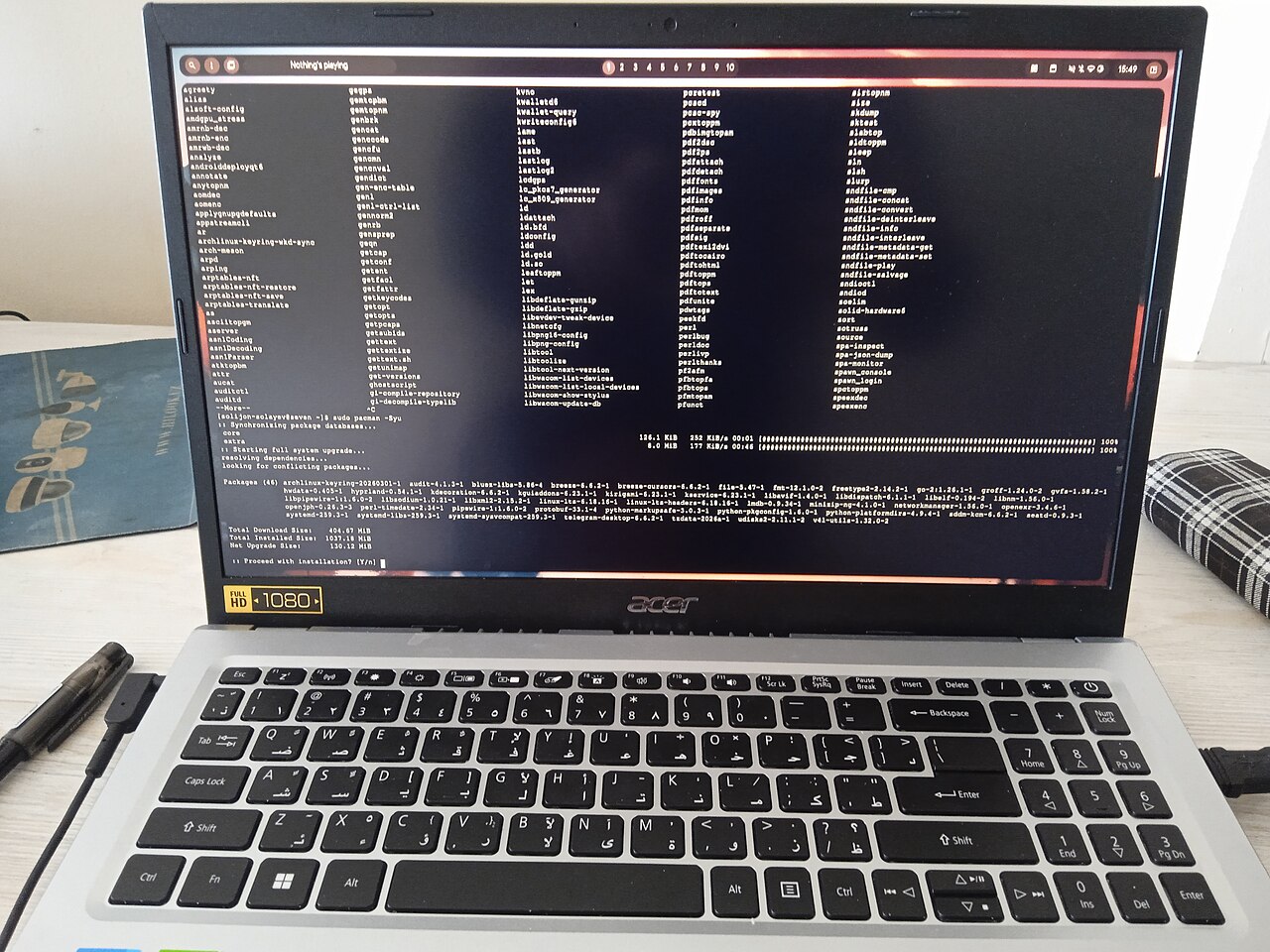
Local setups suit people who value privacy, work offline, or want to experiment. They need more effort than opening a website, and you become responsible for updates and troubleshooting. Our plain guide to running a code-writing AI on your own GPU explains what to expect.
That choice is separate from ChatGPT on Linux itself, which stays a hosted service. It is a different tool for a different goal, so do not treat a local model as a like-for-like replacement. Expect differences in quality, speed and the kinds of tasks it handles well.
Choosing the right route for ChatGPT on Linux
A quick way to decide is to ask what you actually do with the assistant.

If you ask questions and draft text a few times a day, ChatGPT on Linux through the browser is plenty. Use it that way, use the browser. It takes a minute to set up, and you lose nothing. If you want a dedicated window and a launcher icon, install the site as a web app. If you need tight integration, such as quick shortcuts, look for an official client in a format your distribution supports.
If privacy is the main worry, a local model may be worth the effort, but be honest about your hardware. And if you are unsure, start at the top of this list and move down only when something actually bothers you.
Whichever route you choose for ChatGPT on Linux, a few habits help. Keep your system and browser updated. Avoid pasting passwords, private keys or confidential documents into any online assistant. Use separate profiles for work and personal use. Check what a tool does with your history and whether you can delete it.
What to expect from ChatGPT on Linux in daily use
An assistant is useful for explaining an error message, drafting a shell script, summarising a manual page or suggesting a command. Treat the output as a starting point. Always read a command before you run it, especially one that deletes files or uses elevated rights. Models can sound confident and still be wrong, so a careful habit matters more than the app you pick for ChatGPT on Linux.
It also helps to understand how these tools differ from search engines. We cover that in AI search versus traditional search. For command-line questions, an assistant can be faster, but official documentation is still the source of truth.
The short version is that ChatGPT on Linux does not need a special app. The browser works, packaged clients exist for people who want them, and local models serve a niche. Pick the lightest option that does the job for ChatGPT on Linux, and revisit the decision only when your needs change.