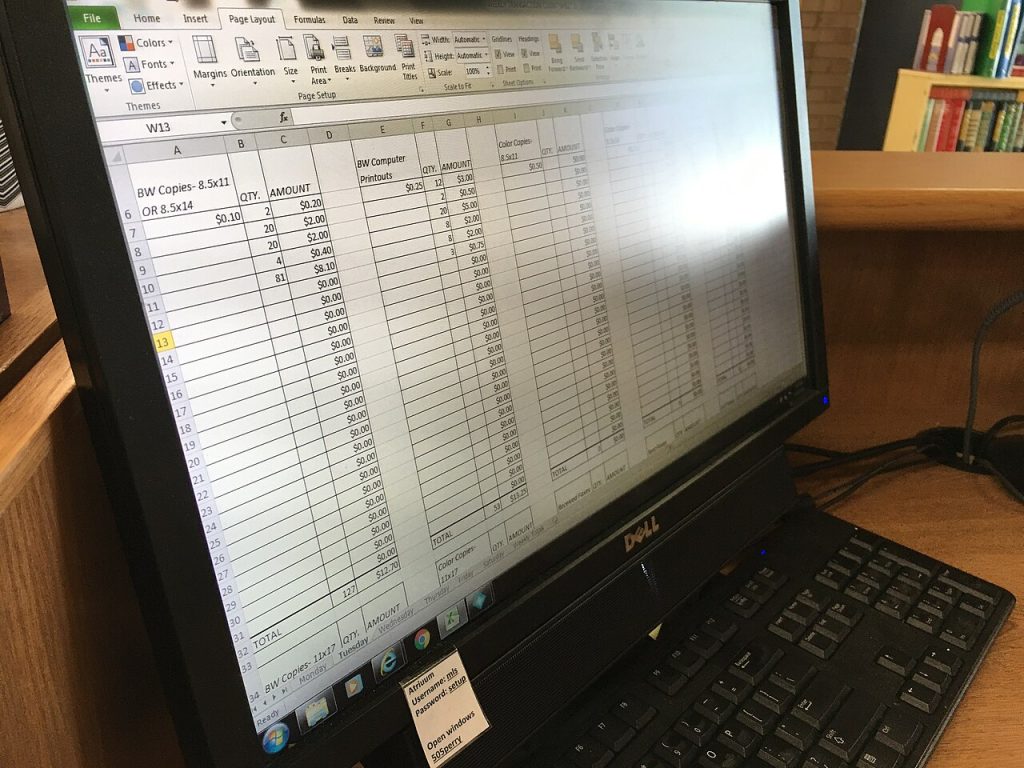
Spreadsheets have been the quiet engine of business for decades. Budgets, sales trackers, research notes and inventory lists all live in rows and columns. Recently, a new idea has appeared: instead of a formula in a cell, put a small AI agent there. You give it an instruction, and it goes off to read a web page, summarise a document or look up a fact, then writes the result back into the cell. It sounds like a small tweak, but it changes what a spreadsheet is good at.
From formulas to instructions
A traditional formula is exact. Type a sum of two cells and you get the same answer every time. An AI cell works differently. You write something like “find the company’s headquarters city” or “classify this support ticket as billing, bug or feature request,” and the tool runs a model to produce the answer.

That makes a spreadsheet useful for messy, text-heavy work that used to need a person typing for hours. Think of a column of company names where the next column should hold a one-line description and the third a guess at the industry. Previously that meant manual research. With an agent per cell, the task runs down the column in parallel.
Where this genuinely helps
- Cleaning data. Standardising names, fixing inconsistent formats, splitting addresses into parts.
- Categorising. Tagging reviews, tickets or survey answers by theme or sentiment.
- Lookup and enrichment. Pulling public facts about many entities at once, such as a company’s size or product line.
- Summarising. Shortening long notes or articles into a sentence per row.
- Drafting. Writing a first-pass personalised message for each contact, to be edited by a person.
For these, the cost of an occasional error is low, and checking a sample is quick. The time saved is substantial.
Where it can go wrong
An AI cell is a guess dressed up as data, and it helps to remember that.
Wrong but confident answers. Models can state a false fact smoothly. A spreadsheet’s neat grid makes every cell look equally authoritative.
Inconsistency. Run the same instruction twice and the result may differ slightly. That matters if other formulas depend on the output.
Hidden sources. If the agent browses the web, you may not know which page it relied on unless the tool records it.
Cost and speed. Thousands of cells means thousands of model calls. Costs add up, and big sheets can be slow.
Privacy. Anything in the sheet that is sent to a model leaves your computer. For customer data, salary figures or confidential contracts, you need to know where it goes.
Habits that keep you safe
You can get the benefit while limiting the risk with a few practical rules.
1. Keep numbers and judgments separate. Let AI fill text columns, and keep arithmetic in ordinary formulas.
2. Ask for sources. If possible, add a column that records the link or the passage used.
3. Spot-check a sample. Verify ten or twenty random rows before trusting a thousand.
4. Freeze the results. Once you are happy, copy the values and paste them as plain text so they stop changing.
5. Use clear, narrow instructions. “Return one word: billing, bug or feature” beats “tell me what this is about.”
6. Flag low confidence. Ask the agent to write “unsure” when it cannot find a clear answer, instead of inventing one.
7. Never use it blindly for money. Totals, tax figures and anything audited should come from verified inputs.
A small example
Say you manage a list of two hundred small suppliers. Column A holds names, column B holds the web address. You want to know what each one sells and whether they ship internationally.
Using agent cells, you could instruct one column to read the website and write a one-line product summary, and another to answer “yes,” “no” or “unsure” on international shipping. You then sort by “unsure,” check those by hand and trust the rest after a sample review. A task that would take a couple of days becomes an afternoon, with a person still making the final call.
What it means for the future of spreadsheets
If agents become a standard feature, spreadsheets may drift from calculation tools toward workflow tools. A sheet might pull data from other apps, process it with a model and push the output to a dashboard or email. That brings power, and it also means a sheet is harder to audit. Today, a skilled person can click a cell and trace a formula. Tracing a model’s reasoning is much harder.
Teams will probably need new habits: documenting what each AI column does, logging which model and settings were used, and keeping a human reviewer for important outputs. Those are the same disciplines good analysts already apply to formulas, just extended to a new kind of cell.
The bottom line
Putting an agent in a cell is a convenient way to handle the kind of text work spreadsheets were never good at. Use it for tagging, cleaning and drafting, keep exact math in regular formulas, check samples, and stay careful with sensitive data. Used that way, it removes drudgery without asking you to give up control of your numbers.
For wider background, Wikipedia has a general overview of Spreadsheet. You may also find these related guides useful: How to Judge a New AI Model Release Without the Hype and AI Video Tools for Filmmakers: What They Do Well and Badly.